Overlay timer for presentations and speaker notes
In this post we will use a notebook module for adding a "ghost" timer and discuss how you can organize your speaker notes.

Timer
The title is quite self-explanatory. During the recent DPG meeting I was wondering if I could have some sort of presenter mode, but without an actual secondary screen. Then the idea came to my mind: why not just overlay the presentation with some stats, like the time elapsed during the presentation? To avoid distraction, I made it appear for only a short period of time so that the speaker could see it and then have it dissolve back into the background.
How it works
It has to be placed on one of your slides, where it attaches to it and accesses the container of your presentation. Then periodically it will append a DOM element with the current time using a JavaScript function, and later remove it. The timer runs on the WL side, while UI operations are done by frontend symbols (functions).
How to use it
Download this notebook
Then place it to your notebook directory and load it as a module:
Then[NotebookEvaluateAsModuleAsync["timer.wln"], Function[module,
    TimerWidget = module
]];Now we place it on some of our slides (for example on a final one):
.slide

# Slide

<TimerWidget Color={Gray} Timeout={Quantity[5, "Minutes"]} Period={Quantity[15, "Seconds"]}/>
Here:
Colorsets the text color of current timeTimeoutmax time for your talk (reglament)Periodhow often show the current time
Speaker notes
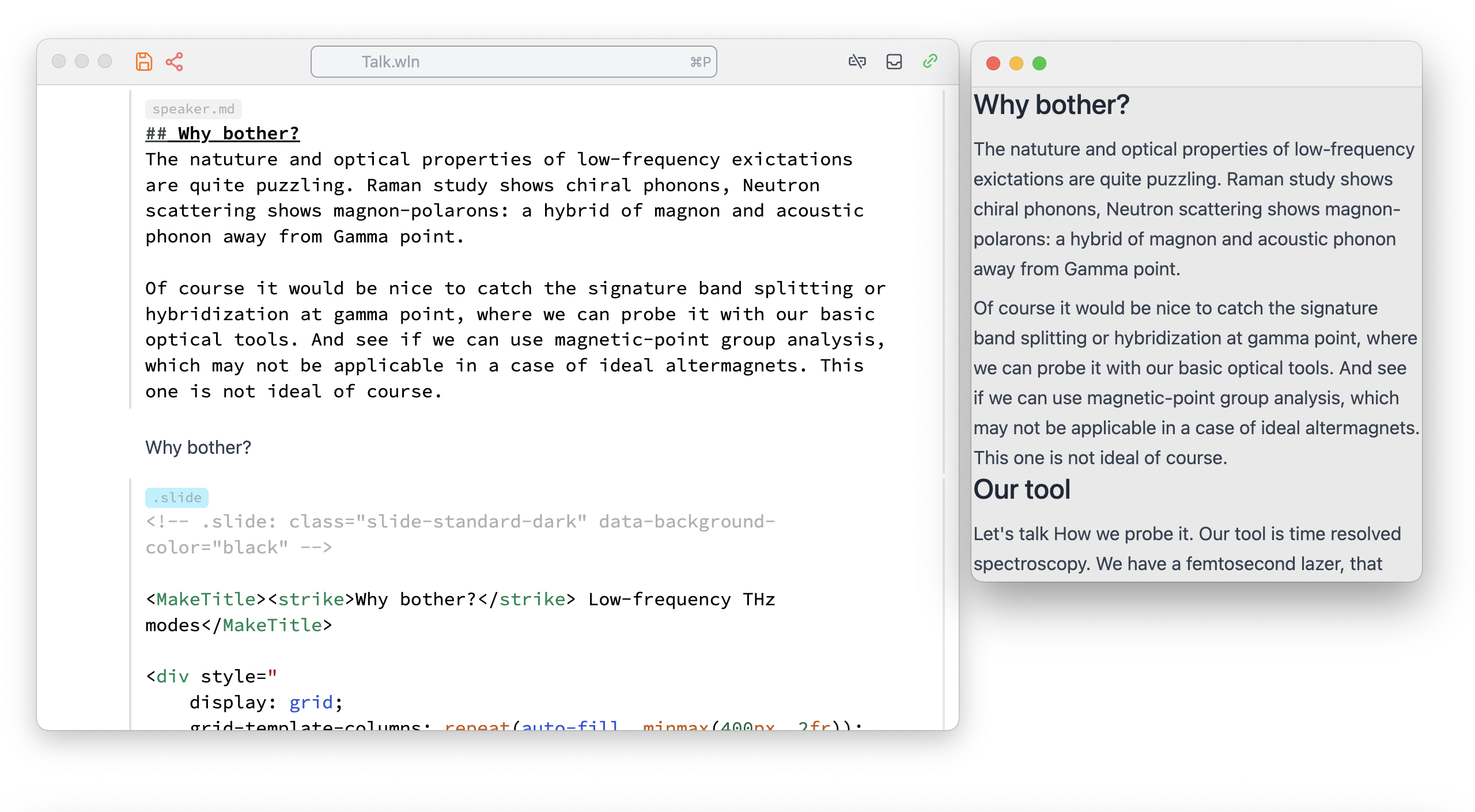
I usually leave my speaker notes in between the slides as plain markdown cells. However, it would be nice to compile them later into a single large text.
For this reason we can "abuse" input cells:
- Use the first line and type something like this:
speaker.mdinstead of just.mdThis will still use markdown formatting, but can be used later as a "marker" - Write there your speaker notes in markdown language
- Do not evaluate them, otherwise it will probably assume you want to create a markdown file
speaker.mdwith your content and will actually create it — not the end of the world, but still. - Find all of these cells in the notebook, merge the text and print to a new window like this:
With[
  {text = StringRiffle[
        Map[
            StringDrop[#, StringLength["speaker.md\n"]] &,
            Select[NotebookRead[Cells[]],
                MatchQ[Cell[_?(StringMatchQ["speaker.md"~~___]), "Input", ___]]
            ][[All,1]]
        ],
    "\n"]},
  {container = StringTemplate["<div style=\"height:100vh; overflow-y:scroll\">\n\n``\n\n</div>"][text]},
  CreateWindow[Cell[container, "Output", "markdown"]]
];
Here we also wrapped it with a scrollable <div> for convenience. Here is how it may look:
Hope you will find it helpful for your presentations in WLJS!